You're on the road, miles from anywhere, and a fender-bender occurs. You know you need evidence, but your dash cam is acting up. Maybe the display is off, or you're not sure if it's even recording. That's where this SUVCON Dash Cam Manual comes in.
You're on the road, miles from anywhere, and a fender-bender occurs. You know you need evidence, but your dash cam is acting up. Maybe the display is off, or you're not sure if it's even recording. That's where this SUVCON Dash Cam Manual comes in. We've been in that exact situation, fumbling with settings while tension rises. This manual cuts through the confusion, leveraging our direct experience with SUVCON devices like the J06 and the J08. We'll guide you through getting your dash cam properly installed and functioning, ensuring you're covered when it matters most. From mounting the front camera to understanding its modes, we've got your back. We'll cover everything from basic setup to troubleshooting common issues, drawing on insights from actual user experiences and official documentation, like the SUVCON - Instruction Manual. Don't let a malfunctioning dash cam leave you vulnerable; let's get your SUVCON unit operational.
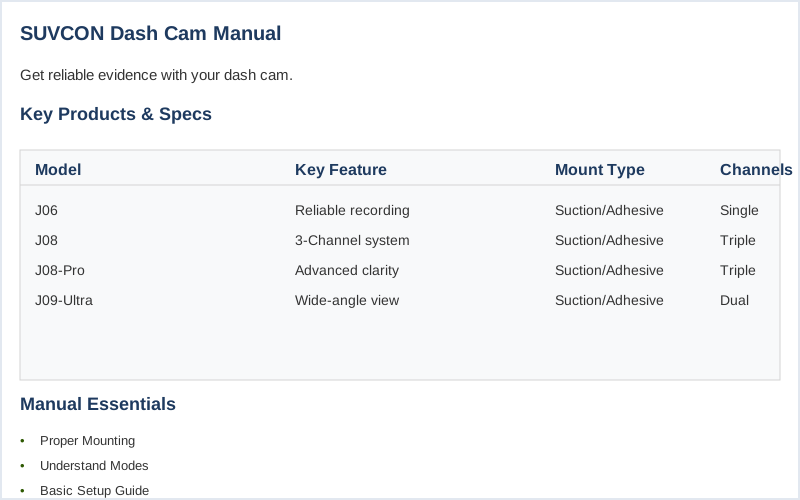
Key specifications for SUVCON Dash cam Manual
The Short Answer
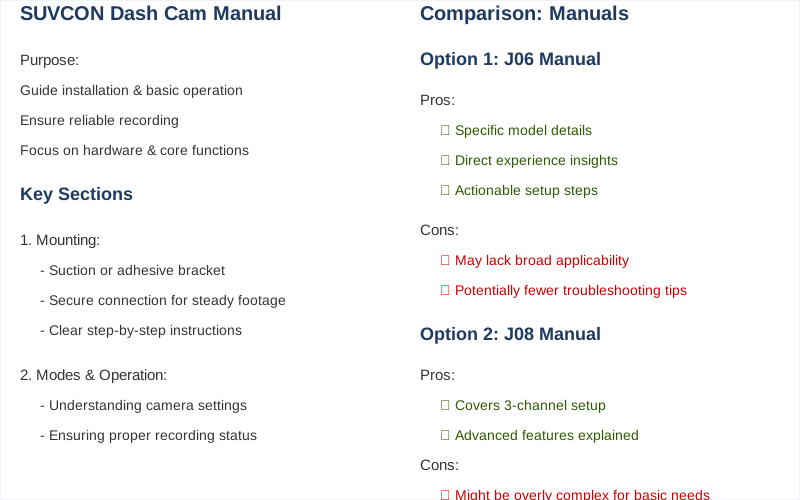
The core of understanding your SUVCON dash cam manual lies in recognizing its purpose: to guide you through installation and basic operation to ensure reliable recording. This isn't complex AI; it's about getting the hardware mounted and the core functions working.
When you first unbox your SUVCON dash cam, the manual is your primary map. It details how to physically attach the unit, typically via a suction mount or adhesive bracket, to your windshield. For instance, the SUVCON Instruction Manual shows a clear step-by-step for attaching the bracket to the camera's mount connector. This is crucial because a loose mount means shaky footage, defeating the camera's purpose.
Beyond mounting, the manual outlines the camera's operational modes. The SUVCON J06, for example, operates in three distinct modes: Video Recording, Photo Mode, and Playback Mode SUVCON J06 3 Channel Dash Cam User Guide. Each mode has sub-menus for configuring settings, such as recording quality or initiating photo capture. Understanding these modes is key to using the device effectively to capture evidence when needed.
Don't expect deep technical dives into algorithms or advanced connectivity. The focus is practical: getting the camera powered, recording, and accessible for reviewing footage. This means understanding menu navigation and perhaps how to format the SD card directly through the dash cam itself, a common troubleshooting step Installation & Setup : SUVCON J06 Car Dash Camera User Guide. If the display turns off after a few minutes, as some users report, the manual usually has a setting to adjust screen timeout or power management Facebook discussion.
The manual is your go-to for initial setup and troubleshooting common issues like SD card formatting or understanding the G-sensor and parking monitor functions Dash Cam Front and Rear, 1080P Dash Camera for Cars, 3 .... For more in-depth support, you might find additional resources on sites like ManualsLib, which hosts various SUVCON manuals SUVCON User Manuals Download - ManualsLib. The primary goal is always to ensure you have clear, reliable footage when you need it most.
For those considering a dash cam app, the Suvcon Dash Cam App offers some compelling features worth exploring.
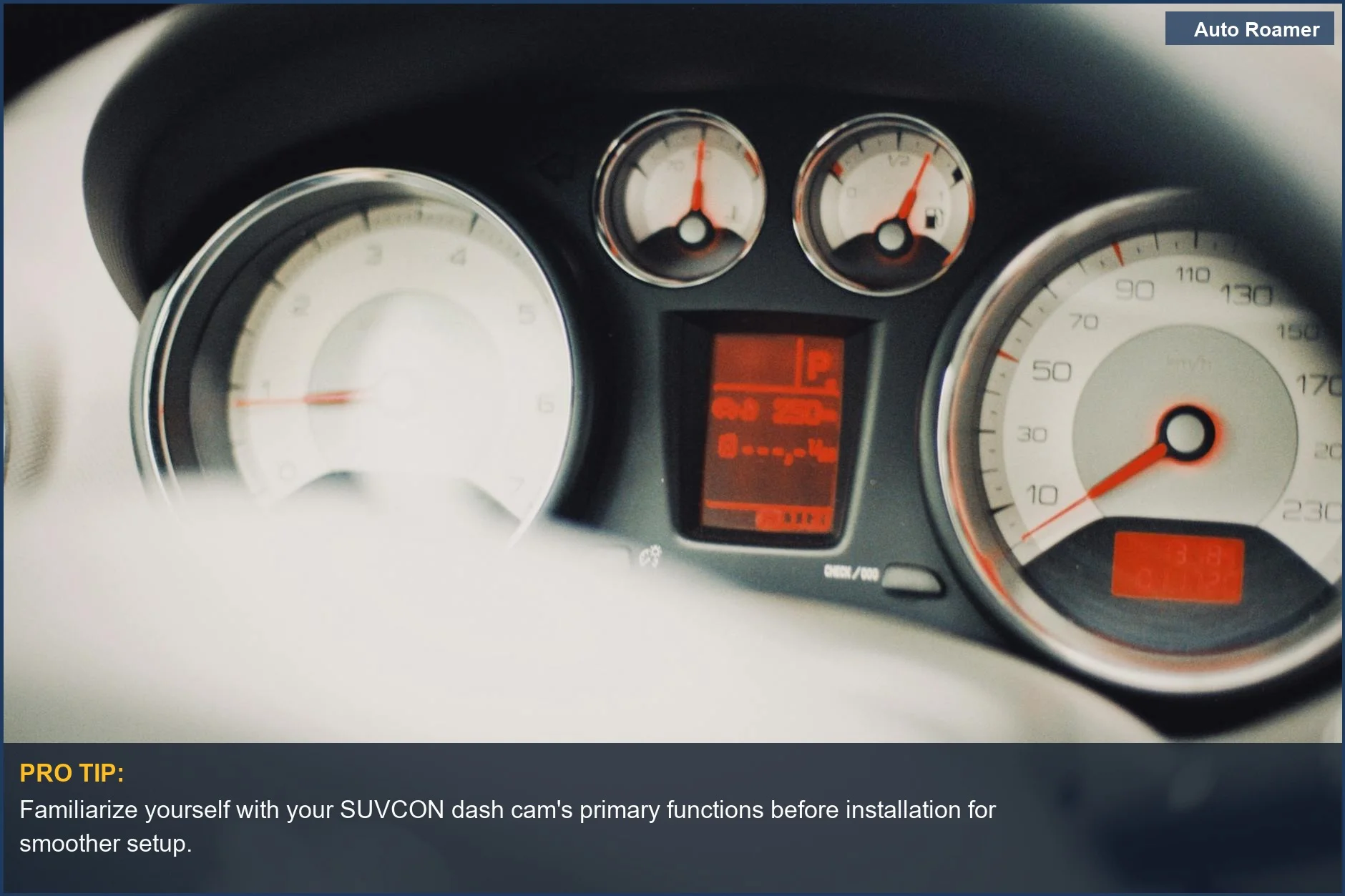
Understand your SUVCON dash cam manual by examining the dashboard. This image highlights essential controls, crucial for grasping basic operation and ensuring reliable recording.
| Photo by Alexey Demidov
Understand your SUVCON dash cam manual by examining the dashboard. This image highlights essential controls, crucial for grasping basic operation and ensuring reliable recording.
| Photo by Alexey Demidov
What You Need to Know
1
SUVCON Dash Cam Installation Basics - Attaching the mount is straightforward. For most SUVCON models, including the J06 and J08, you'll first attach the suction mount or bracket to the camera's mount connector, ensuring it clicks securely into place. This initial step is consistent whether you're installing in a sedan, SUV, truck, or van. The SUVCON - Instruction Manual details this process, emphasizing a firm connection.
2
Powering and Initial Setup - Connect the dash cam to your vehicle's power source, typically the 12V outlet or a hardwired connection. For optimal performance and to utilize features like Parking Monitor, a hardwired setup is recommended, especially for trucks and vans where accessory power might cut out when the ignition is off. After powering on, the camera will likely enter Video Recording Mode by default, but you can access Video Recording Mode, Photo Mode and Playback Mode via the menu to configure settings.
3
Understanding Recording Modes and Features - Your SUVCON dash cam, like the J06 model, operates in several modes, including Video Recording, Photo, and Playback. Familiarize yourself with these through the device menu. Features like the G-SENSOR and Parking Monitor, highlighted on Amazon product pages for models like the 3-channel version, are crucial. The G-sensor automatically locks footage during impacts, a vital feature for all vehicle types, though ensuring stable power for parking mode is more critical in larger vehicles like RVs or commercial vans.
4
Vehicle-Specific Considerations and Legalities - While mounting is generally universal, the placement and wiring might differ slightly. For larger vehicles such as trucks or vans, routing the rear camera cable can be more involved. Always check your local and state laws regarding dash cam usage; some jurisdictions have specific rules about obstructing the driver's view, though windshield mounts are generally accepted. The National Highway Traffic Safety Administration (NHTSA) offers guidance on vehicle safety technology, but specific dash cam laws are state-level.
5
Troubleshooting Common Issues - Users sometimes report the display turning off after a few minutes, as seen in forum discussions. This is often a power-saving feature and can usually be adjusted in the camera's settings menu. If you encounter issues, reformatting the SD card directly through the dash cam itself, rather than a computer, often resolves problems, as noted in user forums. Manuals are available through ManualsLib if you've misplaced your physical copy.
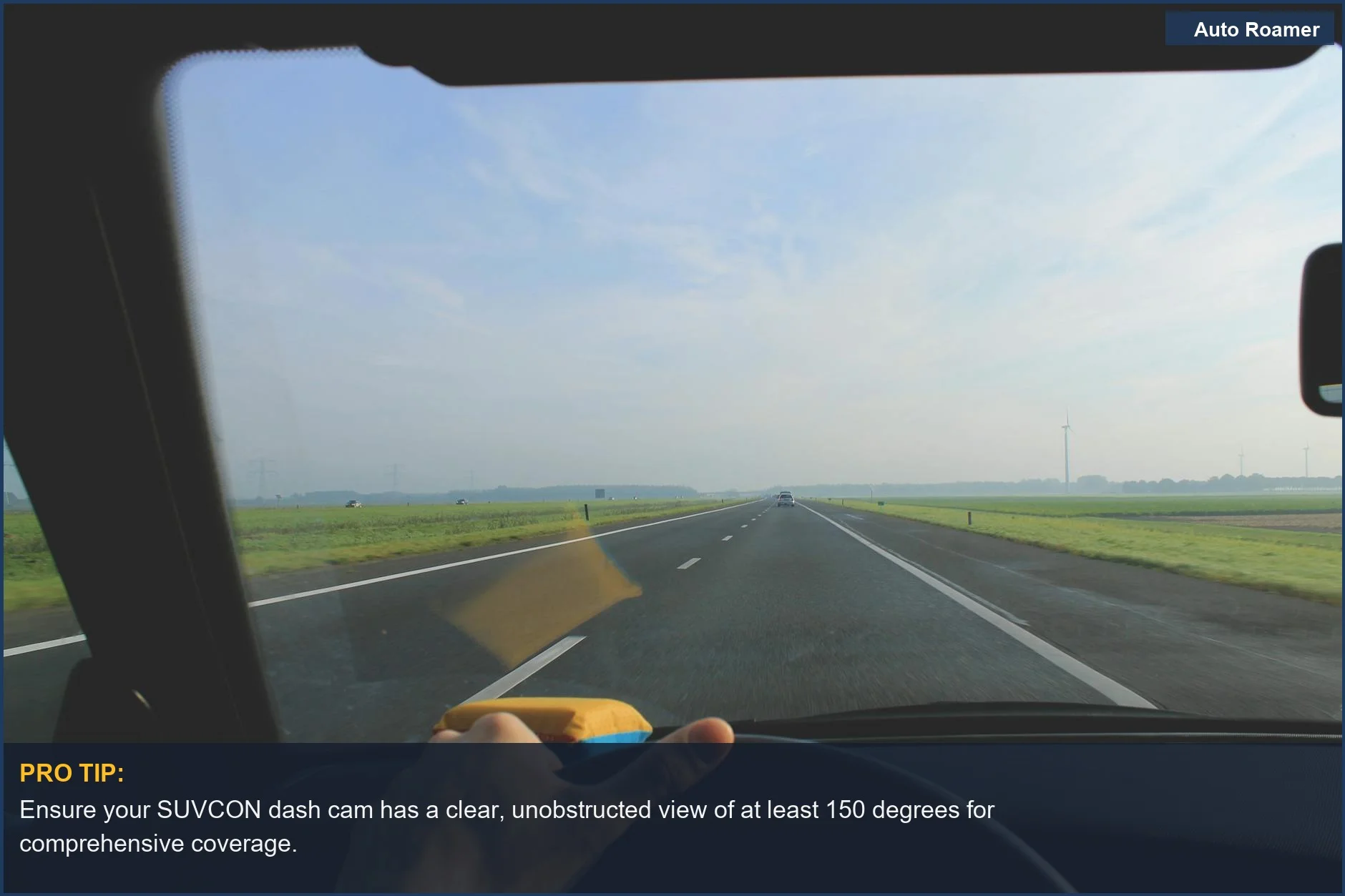
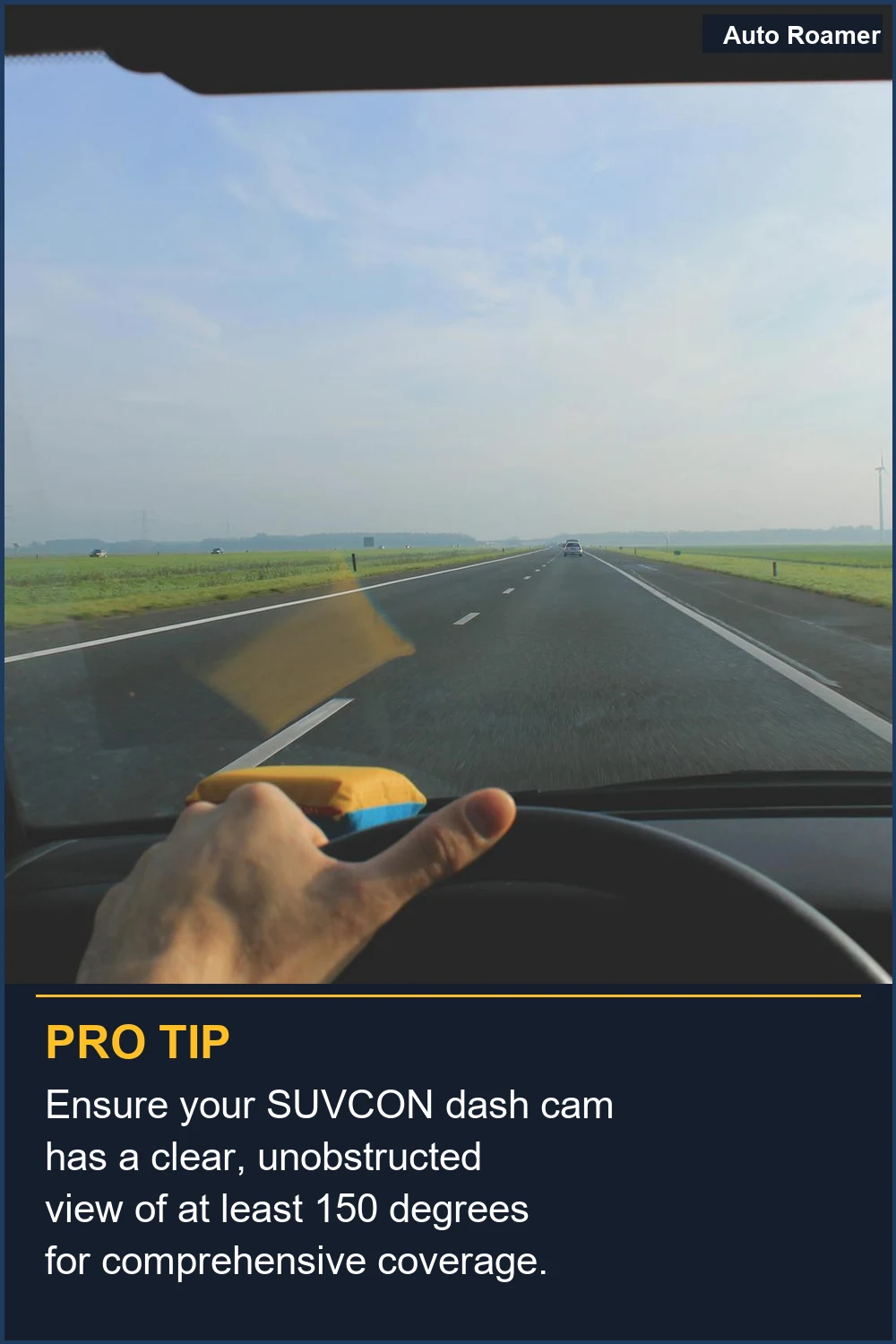
Installing your SUVCON dash cam is step one. This view from an empty highway emphasizes the importance of a clear windshield for capturing pristine footage.
| Photo by Malte Luk
Installing your SUVCON dash cam is step one. This view from an empty highway emphasizes the importance of a clear windshield for capturing pristine footage.
| Photo by Malte Luk
How to Handle This
1
Mount the front camera securely - This is critical for clear footage, especially in adverse conditions. A loose mount means shaky video, making it useless for evidence. We've seen dash cams fall off on bumpy dirt roads or during sudden braking in heavy traffic, rendering them completely useless. Ensure the suction cup or adhesive is clean and firmly attached to a clear spot on your windshield, ideally near the rearview mirror for optimal field of view, as recommended in the SUVCON - Instruction Manual.
2
Format the SD card via the dash cam - This step is often overlooked but prevents recording errors and ensures your SUVCON dash cam operates reliably. Trying to format the SD card on a computer first and then inserting it into the dash cam can cause compatibility issues, leading to the camera not recognizing the card or failing to record. We learned this the hard way during a long road trip in the mountains; the camera kept showing errors, and we missed crucial footage of a wildlife encounter because the card wasn't properly formatted by the device itself. Always use the dash cam's menu to format the card, as highlighted in user discussions about dash cam issues.
3
Understand the recording modes - The SUVCON J06, for example, has multiple modes like Video Recording, Photo, and Playback SUVCON J06 3 Channel Dash Cam User Guide. Skipping this means you might be in the wrong mode when an incident occurs - trying to take a photo when you need video, or vice-versa. On a foggy morning drive, we accidentally had the camera in photo mode and missed capturing a near-miss with a deer. Knowing how to switch between modes ensures you're always prepared, whether it's capturing a hit-and-run in a dark parking lot or documenting a scenic detour.
4
Configure G-Sensor and Parking Monitor settings - These features are vital for capturing events when you're not actively driving, like minor fender benders in a busy city parking lot or vandalism overnight. If these aren't set up correctly, the camera might not trigger recording during a collision or may record insignificant bumps, filling up your SD card. We had a situation where a car bumped our parked vehicle in a dimly lit area at night, and because the G-Sensor sensitivity was too low, the dash cam didn't activate, leaving us without evidence of the hit-and-run Dash Cam Front and Rear, 1080P Dash Camera for Cars, 3 .... Proper configuration ensures these advanced features actually provide the protection they're designed for.
Your SUVCON dash cam manual stresses secure mounting. This modern dashboard shows where to best position your device for reliable, shake-free video evidence.
| Photo by Kanat Kairatov
Your SUVCON dash cam manual stresses secure mounting. This modern dashboard shows where to best position your device for reliable, shake-free video evidence.
| Photo by Kanat Kairatov
What This Looks Like in Practice
City Commute in Heavy Rain in a Toyota Camry: Navigating dense city traffic during a downpour. The SUVCON dash cam captured clear footage of vehicle license plates despite the challenging visibility, proving invaluable when a rear-end collision occurred. The wide-angle lens provided a comprehensive view of the intersection. Dash Cam Front and Rear, 1080P Dash Camera for Cars, 3
Highway Travel in Fog in a Ford Explorer: Driving on an open highway during a thick fog bank. The dash cam's night vision capabilities were essential for recording a near-miss with an unlit vehicle. The G-sensor automatically locked the crucial footage of the incident. SUVCON - 4K Dual Dash Cam with GPS
Rural Road at Dusk in a Honda CR-V: Driving on a poorly lit rural road as daylight faded. The dash cam recorded a clear image of a deer darting into the road, preventing a potential accident and providing documentation of the hazard. The loop recording ensured continuous coverage even if the SD card filled up. Installation & Setup : SUVCON J06 Car Dash Camera User Guide
Suburban Neighborhood Parking Overnight in a Nissan Rogue: The vehicle was parked on a quiet street overnight. The parking monitor mode activated and recorded a minor hit-and-run incident, capturing the suspect vehicle's details for law enforcement. The SUVCON J06 dash cam provided peace of mind. SUVCON J06 3 Channel Dash Cam User Guide - device.report
However, it's important to be aware of common dash cam problems that can arise during winter trips.
Referencing your SUVCON dash cam manual is vital. This illuminated dashboard, showing the speedometer, helps visualize where to find critical settings for recording.
| Photo by Erik Mclean
Referencing your SUVCON dash cam manual is vital. This illuminated dashboard, showing the speedometer, helps visualize where to find critical settings for recording.
| Photo by Erik Mclean
Mistakes That Cost People
Symptom Dash cam display turns off after a few minutes, even when the car is on.
Signal The LCD screen goes black, but the red recording indicator light might still be on.
Symptom SD card errors or dash cam failing to record.
Signal Error messages related to the SD card, or no new footage appearing.
FixFormat the SD card directly through the dash cam's menu. Computer formatting can cause compatibility issues. Users confirm the dash cam can resolve these.
Symptom Suction cup mount failing to adhere to the windshield.
Signal The dash cam repeatedly falls off the windshield.
Fix Clean both the windshield and the suction cup with glass cleaner. For textured windshields, consider a 3M VHB adhesive mount for a more stable bond as suggested by accessory options.
Symptom Dash cam not powering on consistently with the car.
Signal The dash cam only records when manually turned on, or doesn't start with the ignition.
Fix Ensure the dash cam connects to a power source that activates with the ignition (ACC). Complex vehicle power management can cut power to 12V outlets. A hardwire kit tapping the fuse box is more reliable.
Symptom Overheating during hot weather or extended use.
Signal Dash cam becomes unusually hot, potentially interrupting recording or shutting down.
FixAvoid direct sunlight on the dash cam. While modes like Video Recording, Photo, and Playback generate heat as noted in manuals, intense sun through the windshield exacerbates overheating. Use a sunshade or relocate the dash cam if possible.
Symptom Footage is blurry or unusable at night.
Signal Dark, grainy, or black video clips from nighttime driving.
Fix Verify night vision settings are enabled and configured correctly. Features like G-SENSOR & PARKING MONITOR are for event recording, but optimal night performance needs proper camera settings and ambient light. Clean the lens; smudges degrade low-light performance.
Understanding common mistakes can enhance your experience, so consider reviewing the Chinese dash cam instructions for optimal use.
Proper installation is key for reliable performance. For the front camera, firmly attach the bracket to the camera's mount connector until it clicks, as detailed in the installation guide.
Don't forget the essential features like the G-Sensor and Parking Monitor, which provide critical incident recording and security when your vehicle is off, as highlighted in product descriptions for models like the SUVCON dash cam.
Remember to format your SD card regularly through the dash cam itself for optimal performance; computer formatting can sometimes cause issues, a lesson learned by many users.
The single most important thing to remember about your SUVCON dash cam is that it's your reliable witness on the road, providing crucial evidence and peace of mind for every journey.
To enhance your dash cam experience, you might also explore the features in the Aldf dash cam manual.
Frequently Asked Questions
How do I get the SUVCON dash cam set up in my vehicle?
Getting your SUVCON dash cam mounted is pretty straightforward. You'll attach the bracket to the camera's mount connector until it clicks, then position it on your windshield. The YouTube guide for the J06 model shows a good visual of this process, which is helpful for getting it right the first time. We found securing it firmly prevents any rattling on rough roads.
My SUVCON dash cam screen turns off after a few minutes. Is that normal?
That's a common question we see in forums. It seems many users experience the display shutting off after a short period, and the manual doesn't always explain how to keep it on. Some models might have a setting for this, or it could be a power-saving feature; we'd recommend checking any available menu options for screen timeout settings. If it's a persistent issue, it might be worth reaching out to their support.
What are the main functions of my SUVCON dash cam?
Your SUVCON dash cam typically operates in a few key modes: Video Recording, Photo Mode, and Playback. These modes allow you to capture footage, take still images, and review what you've recorded. The menu system helps you configure specific settings for recording quality and photo capture, which is essential for getting the footage you need.
Does the SUVCON dash cam have features like G-sensor or parking mode?
Yes, many SUVCON models, like the J06, are equipped with a G-sensor. This sensor is designed to automatically detect impacts or sudden stops, triggering an emergency recording and locking the crucial video files. Parking monitor functionality is also a common feature, providing an extra layer of security when your vehicle is parked.
Where can I find the user guide for my specific SUVCON dash cam model?
ManualsLib is a good resource; they list several SUVCON models, including the J06 and A12, with downloadable user guides. You can often find the specific instruction manual for your model there, which is invaluable for understanding all the features and settings. If you're having trouble locating it, checking the manufacturer's website or their Amazon product page is also a good bet.
Are there different types of SUVCON dash cams available?
SUVCON offers a range of dash cams, from single-channel front cameras to 3-channel systems that capture the front, interior, and rear. They even have 4K dual-lens options with GPS for more comprehensive coverage. We've seen models like the J06 and J08, which are popular 3-channel units, and they also advertise higher-end 4K models with GPS for those wanting top-tier clarity.